
You may have noticed over the past couple months that a recent update to Google Chrome has added a new shimmer effect on objects within images that come up on your searches. Google released the update quietly, without any warning – not even a pop-up or tooltip to clue you in about the change. Users were immediately asking what it was, why it was happening, and how to turn it off. Allow us to explain…
What Causes The Shimmer Effect On Google Images?
That gleaming, shiny effect you see on Google images is caused by an app called Google Lens. According to Wikipedia, “Google Lens is an image recognition technology developed by Google, designed to bring up relevant information related to objects it identifies using visual analysis based on a neural network.” You will notice the Lens icon on the bottom left corner of your image in the Google images search.
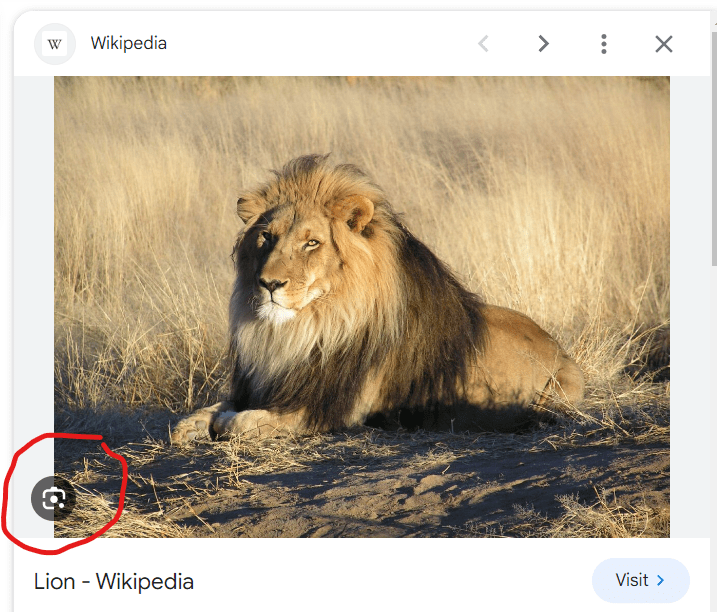
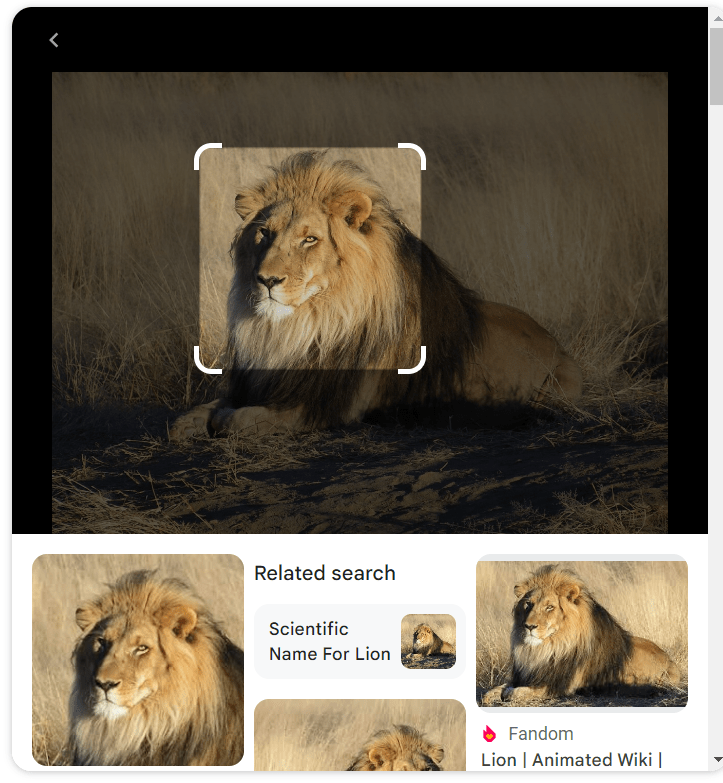
If you click on the icon, it will use Lens to search the image for all sorts of data, including text, QR codes, and recognized images based on its massive library, or “network” of pictures. You can even crop the area of an image to search for specific pieces. This will then yield search results based on the newly selected information.
How Do You Turn Off Google Lens On Image Searches?
For those of you who do not want the shimmer effect on your Google image searches, you can disable Lens by opening Google Chrome and navigate to the the following URL: chrome://flags. You then need to find the Search flags input field at the top of the web page. Here you just search for “Lens“. Now you must open the drop-down menu next to the Search your screen with the Google Lens option and click Disabled. Now restart your Chrome browser and the Lens app should be disabled and you will no longer see the shimmer effect on your Google image searches. If you are having trouble, here is a step-by-step guide.

